> ## Documentation Index
> Fetch the complete documentation index at: https://docs.letscolab.tech/llms.txt
> Use this file to discover all available pages before exploring further.
# Mention
Master the @ Mention panel in Colab Canvas. Learn to strictly lock models like Nano Banana or Veo 3 and attach specific project resources. Understand the priority logic vs. Model Select.
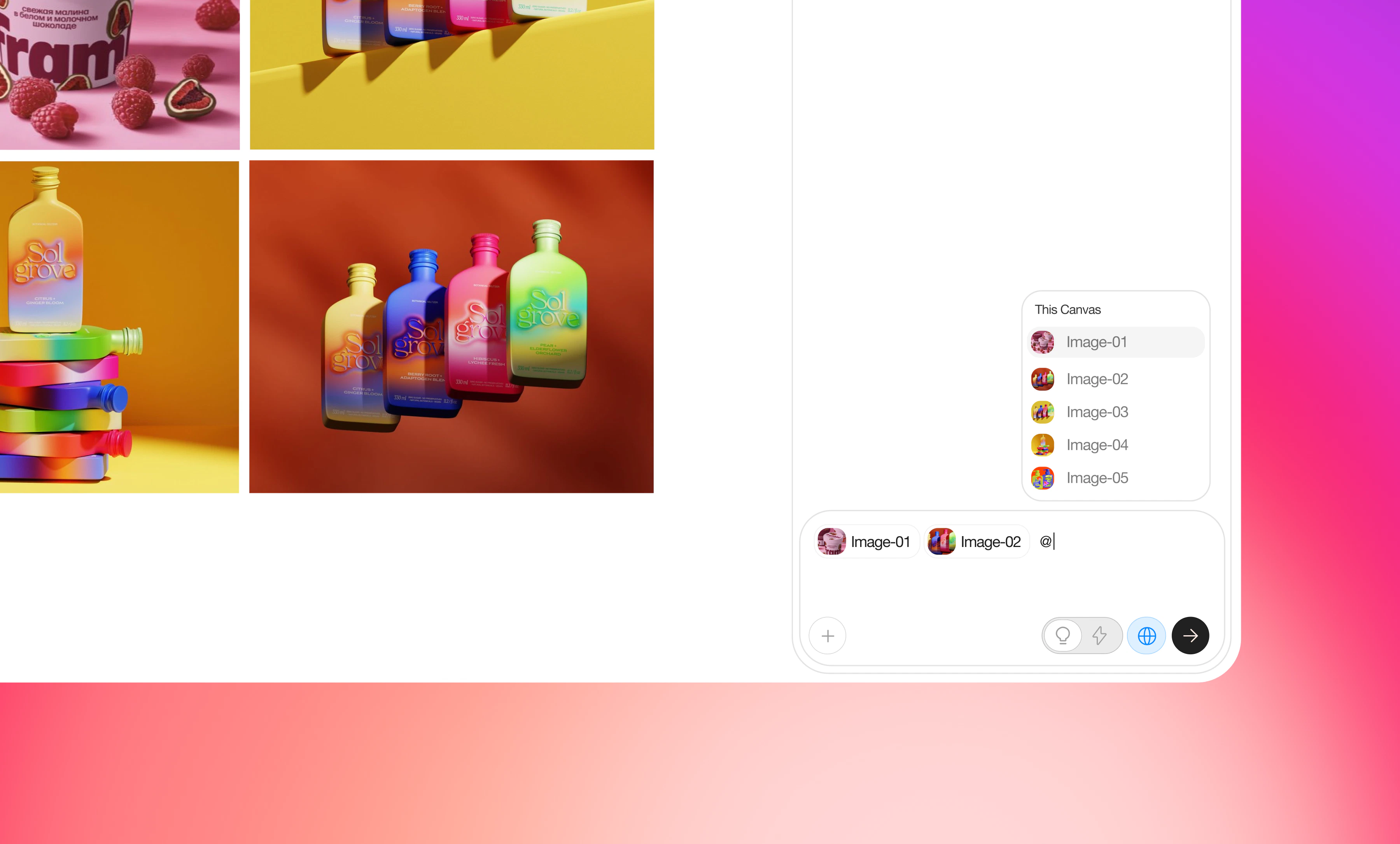 \
The **@ Mention** panel is used to **explicitly select** resources in the current conversation, so the agent strictly uses them as context when generating content.
### **Core usage**
* Type **@** in the input box to open a searchable list.
* Choose an **image, model, or project** from the list, and it will be attached to the current generation request.
### **Selection logic**
* When you **@ mention a model**, this is a **selection logic**: the system will execute with the exact model you call, not just treat it as a soft preference.
* Key difference: the Model Select panel defines **preferences**, while @-mentioning a model is a strong, high-priority instruction that overrides preferences.
\*Each conversation input can include a maximum of 10 elements combined (files, images, mentions, etc.).
\
The **@ Mention** panel is used to **explicitly select** resources in the current conversation, so the agent strictly uses them as context when generating content.
### **Core usage**
* Type **@** in the input box to open a searchable list.
* Choose an **image, model, or project** from the list, and it will be attached to the current generation request.
### **Selection logic**
* When you **@ mention a model**, this is a **selection logic**: the system will execute with the exact model you call, not just treat it as a soft preference.
* Key difference: the Model Select panel defines **preferences**, while @-mentioning a model is a strong, high-priority instruction that overrides preferences.
\*Each conversation input can include a maximum of 10 elements combined (files, images, mentions, etc.).